Setup
Add Testers via Google Group in Play Console
Create a Google Group, set who can join, add it to your closed testing track, and send testers the opt-in link. Step-by-step guide.
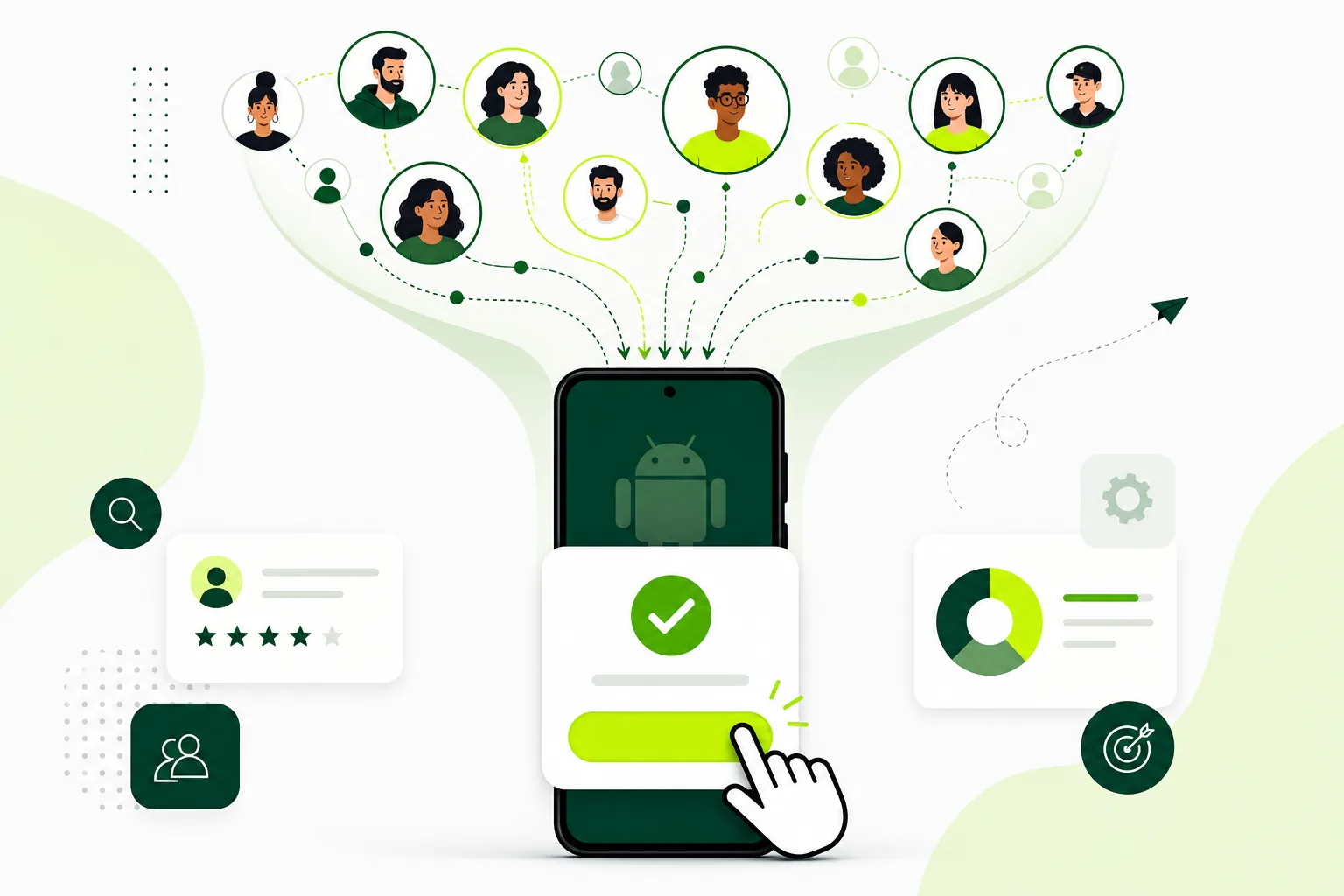
On this page · 7 sections
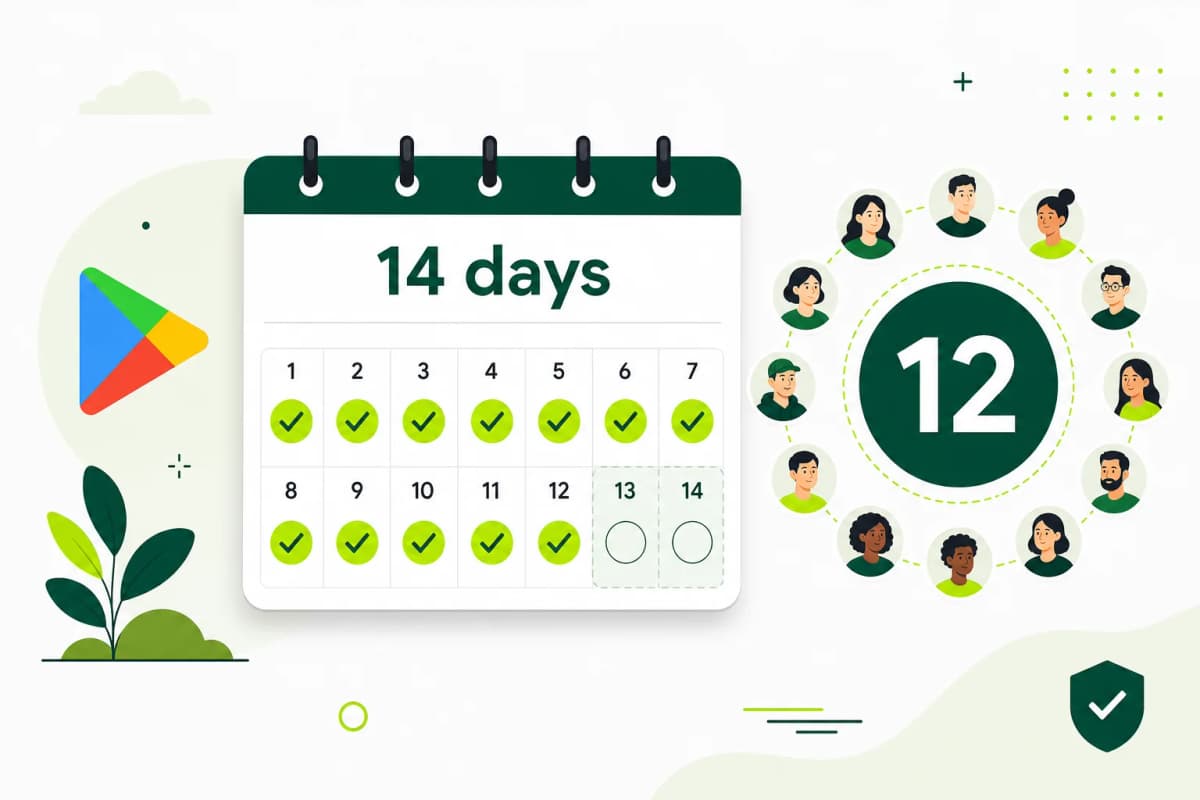
To add testers via a Google Group, create a group in Google Groups, let testers join it with the Google account they use on their phone, then add the group's email address on the Testers tab of your closed testing track in Play Console. Save, copy the web opt-in link, and send it to the group members. A group is easier than an email list because you can add or replace testers in the group without editing Play Console each time. Google's 12-tester, 14-day closed testing rule applies to personal Play developer accounts created after 13 November 2023; organization accounts are exempt (Play Console Help 14151465).
Step by step
- Go to Google Groups and create a new group. Give it a clear name and note its email address, which ends in @googlegroups.com for a regular group.
- In the group settings, choose who can join. For a test with people you know, inviting members or letting people ask to join both work. Pick the option that fits how you recruit.
- Add testers. Either invite them by email or share the group link so they can join. They must join with the same Google account that is signed in to the Play Store on their phone.
- In Play Console, go to Testing > Closed testing and select your track.
- Open the Testers tab and choose Google Groups as the way to add testers.
- Enter the group's email address and save.
- Make sure the track has a release that is available to testers.
- Copy the web opt-in link from the Testers tab and send it to group members.
- Ask each tester to open the link, accept, and install the app from the Play Store.
Group settings that cause problems
If testers say they cannot join, check the group's join settings first. A group set so only invited people can join will block anyone who tries to join from a link.
Membership must be real. A pending invitation is not membership. Ask testers to accept the group invitation before they open the opt-in link.
Keep the group tidy during the test
Do not remove members during the test unless you mean to. Removing someone from the group removes them from your test, which can affect the continuous 14-day count.
If you need to add replacement testers, add them to the group and send them the opt-in link. Their own 14 days start when they opt in.
Email list or Google Group?
An email list in Play Console works well for a small, fixed group. A Google Group is easier when testers change, when you run more than one app, or when you want people to join themselves. Either way, testers still need to open the opt-in link and accept.
Tell members what to expect
When people join the group, send them one short message. Say which app they are testing, that they need to open the opt-in link and accept, which Google account to use, and how long the test lasts. Ask them to stay in the group and keep the app installed until you tell them the test is over.
Also tell them how to send feedback. A single form or email address is enough. Clear expectations at the start reduce the number of testers who leave halfway through.
FAQ
Questions about this topic
Do testers need to accept the group invite and the opt-in link?
Yes. Joining the group gives access. Opening the opt-in link and accepting makes them a tester for your app.
Can I use one group for several apps?
Yes. You can add the same group to closed tracks for different apps. Each app still has its own opt-in link.
Why does a group member not show as a tester?
They may not have opened the opt-in link, or they joined the group with a different Google account than the one on their phone.
Sources
Official references used
- App testing requirements for new personal developer accounts (Google Play Console Help)
Continue
Choose the next step
Related
Next pages to read
Rather not recruit testers yourself?
Our managed closed test runs 14 testers for 16 days. Google requires 12 testers for 14 days (for personal Play developer accounts created after 13 November 2023; organization accounts are exempt); the extra 2 testers and 2 days are our buffer.