App launch
Make Store Screenshots Match the App People Will Install
Plan a truthful visual story from real release screens and test it with unfamiliar readers.
On this page · 4 sections
At a glance
In plain English
- Choose a short product story
- Test understanding without narration
- Maintain the assets with the release
Choose a short product story
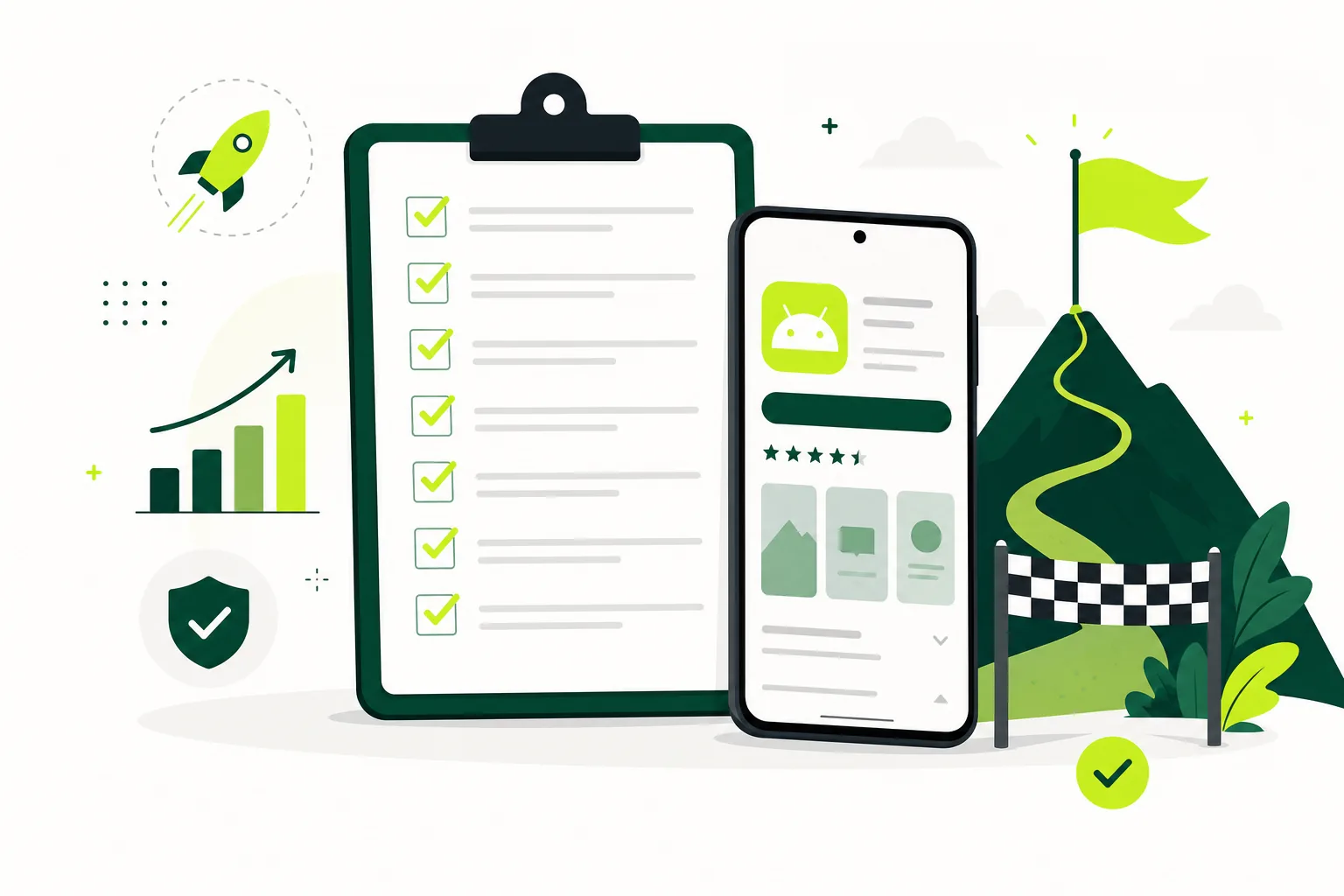
Select screenshots that explain the main task, a useful result, and a meaningful supporting feature. Capture the release version with safe demonstration data. Avoid showing unfinished controls or personal information simply because they make the screen look busy.
Test understanding without narration
Show the sequence to someone who has not used the app. Ask what they think it does and what they expect after installing. If their expectations differ from the product, adjust the selection or captions. Treat this as a communication test, not a vote on decorative style.
Maintain the assets with the release
Keep original captures and caption text beside your release notes. Recheck the images when navigation or paid features change. Verify current store asset specifications in the official listing guidance before export, and never imply a feature is included when it requires a different plan.
Sources
Official references used
- Best practices for your store listing (Google Play Console Help)
- Creating Your Product Page (Apple Developer)
- Upload app previews and screenshots (App Store Connect Help)
Continue
Choose the next step
Related
Next pages to read
Need 12 testers for 14 days?
Start a managed Google Play closed-testing run with verified testers, opt-in monitoring, and a closeout report.